Grasshopper¤
The COMPAS FAB Grasshopper components let you build robot cells, solve kinematics, and plan motions on the canvas, the same data model and planning backends as the Python API, wired visually. They're ideal for exploring poses and targets interactively and for previewing trajectories in the Rhino viewport.
Install them from the Rhino Package Manager (search compas_fab); the
components then appear under the COMPAS FAB tab in the Grasshopper toolbar.
If you're building or modifying the components, see
Extending compas_fab › Grasshopper components
instead.
The mental model¤
Two objects flow through almost every Grasshopper file, and keeping them straight is the key to the components:
RobotCell: the models: the robot, plus any tools and rigid bodies. Produced by a Load Robot Cell component.RobotCellState: the configuration: the robot's joint values and which tools / workpieces are attached where. Produced alongside the cell and then refined by theSet …andAttach …components.
A planner (Analytical, PyBullet, or MoveIt) consumes the cell and answers kinematics & planning questions. Visualize Robot Cell draws a cell at a given state. See Concepts for the data model in depth.
Auto-wired inputs
Several components create their own helper widgets when an input is left
unwired: Load Robot Cell drops a robot dropdown, target components a
target_mode dropdown, and ROS Client a connect toggle. Just drop the
component and go.
First example: visualize and update robot pose¤
The "Hello world" of COMPAS FAB in Grasshopper: load a robot and move it with sliders. No backend server, no setup beyond the components.
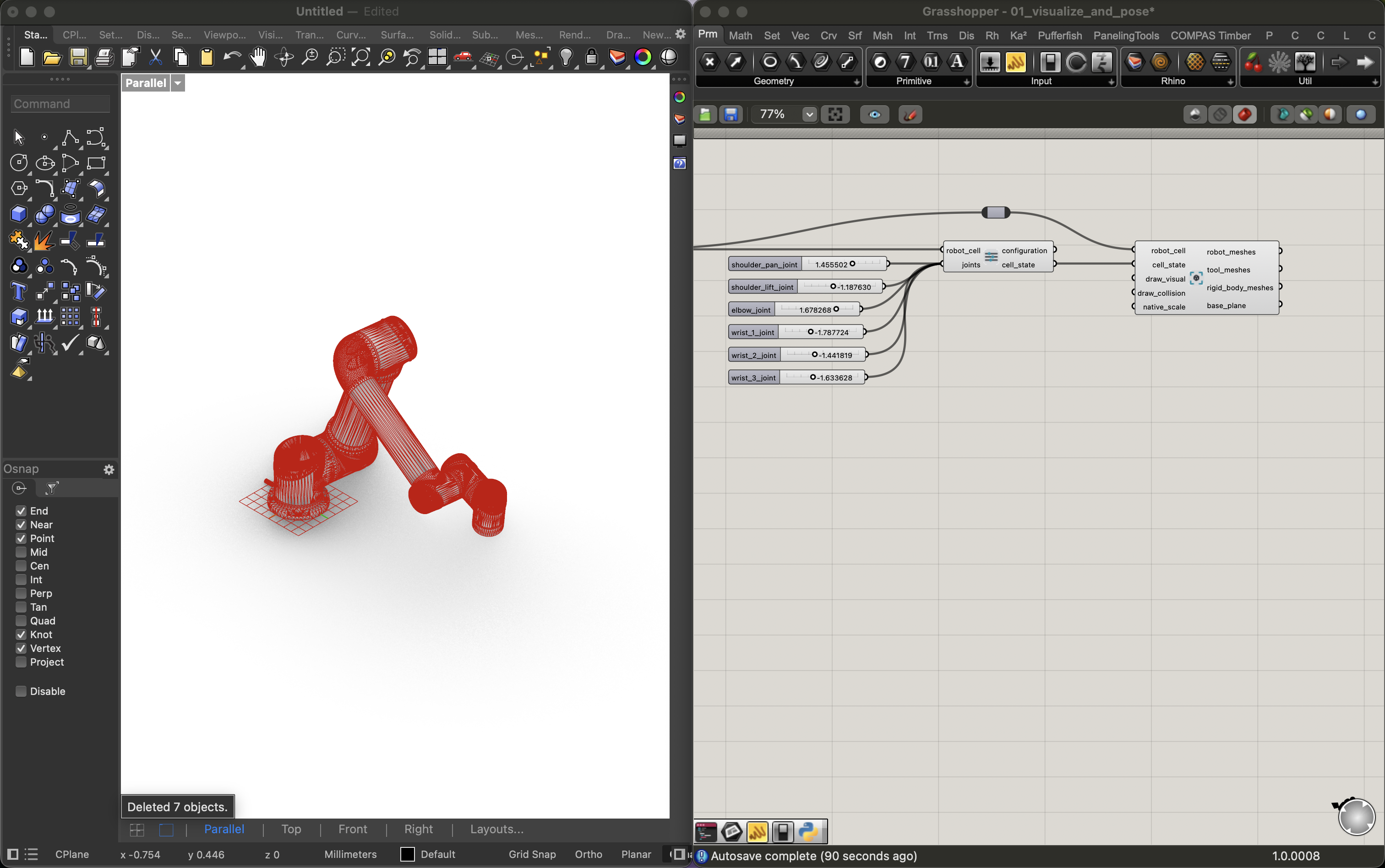
Load Robot Cell From Library (ur5) → Robot Configuration (which
drops a slider per joint) → Visualize Robot Cell. Drag the sliders and the
robot moves live in the viewport.
Download 01_visualize_and_pose.ghx
More examples¤
Each is a self-contained Grasshopper file. Start at the top and work down.
Kinematics (no server required)¤
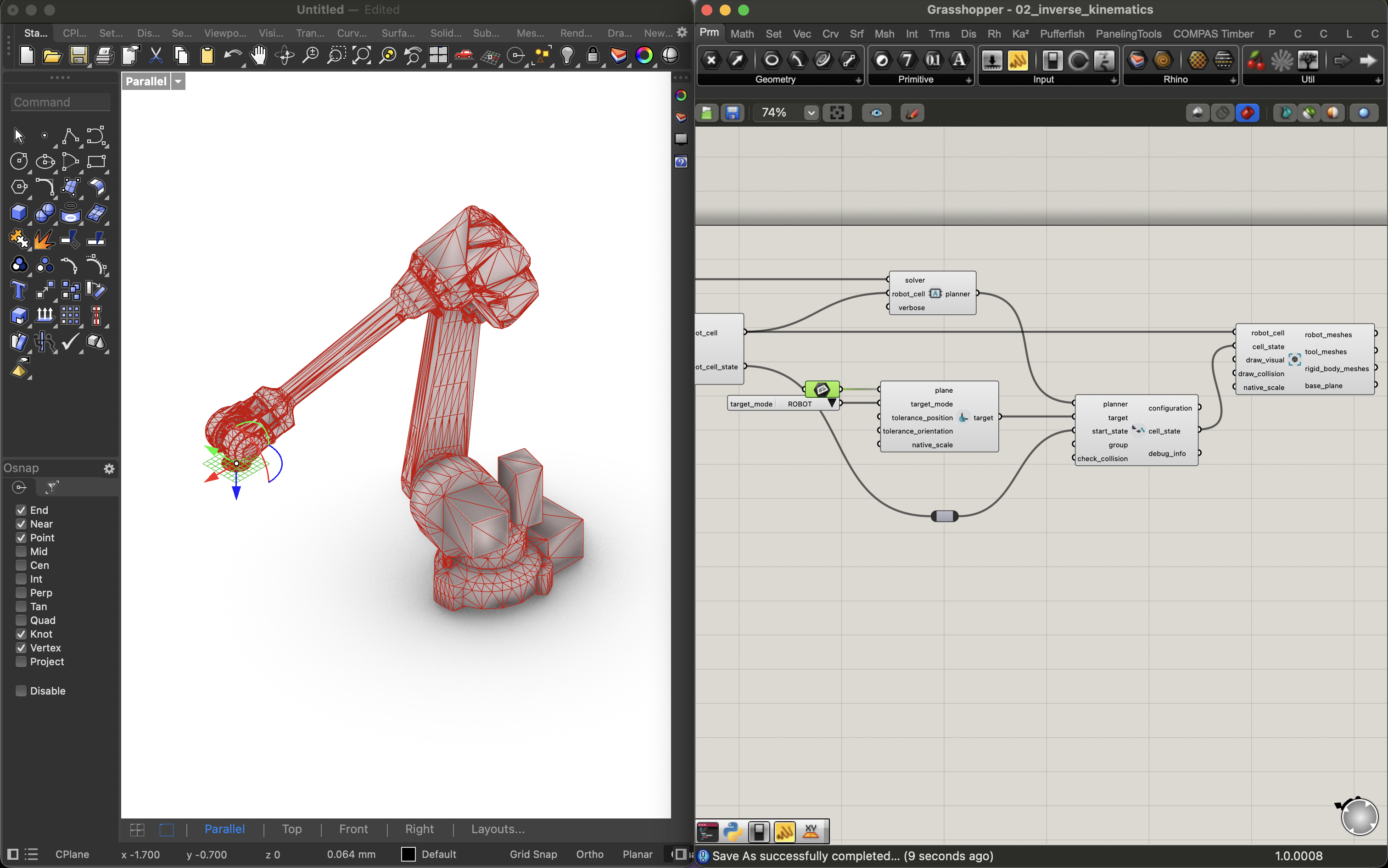
02_inverse_kinematics.ghx: solve inverse kinematics to a target plane with the in-process Analytical Planner: Load Robot Cell → Analytical Planner → Frame Target → Inverse Kinematics → Visualize. Move the target plane and watch the robot follow.
Building a robot cell¤
03_build_robot_cell.ghx: add a tool and a rigid body to a cell and attach the tool to the robot, then visualize the result. Shows the load registers models → state attaches them split.
Motion planning¤
04_plan_motion.ghx: plan a free-space motion with MoveIt over a ROS bridge: ROS Client → MoveIt Planner → Frame Target → Plan Motion, then Deconstruct Trajectory with an index slider to scrub the path through Visualize Robot Cell. Requires a running ROS + MoveIt backend (set one up).
Putting it together¤
05_kitchen_sink.ghx: a fuller canvas combining cell building, targets, planning, and visualization, for reference once the basics click.
Troubleshooting¤
- A component is red. Hover its balloon for the message; the planning
components also expose it on a
debug_infooutput you can wire to a panel. - I updated compas_fab but the canvas didn't change. Components cache their imports — restart Rhino after upgrading, and rebuild/reinstall the userobjects if you changed the components themselves.
- Nothing draws / the robot is tiny. Check your Rhino document units; the
models are in metres, and the visualize / target components take a
native_scalefor non-metre documents.